
BIGVU: Elevate Your Professional Marketing Videos with AI
It’s no secret that AI has completely changed how we create across almost every field. Video production is no exception. BIGVU is a tool that utilizes AI to help you build high-quality videos, with features to help users script, record, and edit videos.
From AI-assisted scriptwriting to a teleprompter to make recording more convenient, this tutorial will teach you how to use BIGVU to elevate your video production.
Join BIGVU today, and use our promo code MEHFIN63 to receive $20 off when you subscribe, or join here!
Contents:
- Overview
- BIGVU Script Writing
- Recording Your Video
- Editing Your Video
- Sharing Your Video
BIGVU Overview
About: BIGVU is an AI-powered video app that simplifies the video creation process. Whether you are a business owner, educator, or content creator, you can find what you need to quickly and easily make high-quality videos. With BIGVU you can:
- Write Your Script
- Use AI to help brainstorm video ideas and write a script
- Teleprompter
- Read your script smoothly while you’re recording, right from your screen
- Automatic Captions
- Automatically generate video captions to help improve accessibility and engagement
- Professional Editing Tools
- Add music, logos, and visuals
- Publish Anywhere
- Share videos directly to your social media platforms
BIGVU can be used from your computer or mobile device.
To use on the web, navigate to BIGVU’s website and log in. The website is best for watching tutorials, writing scripts, and editing/uploading videos.
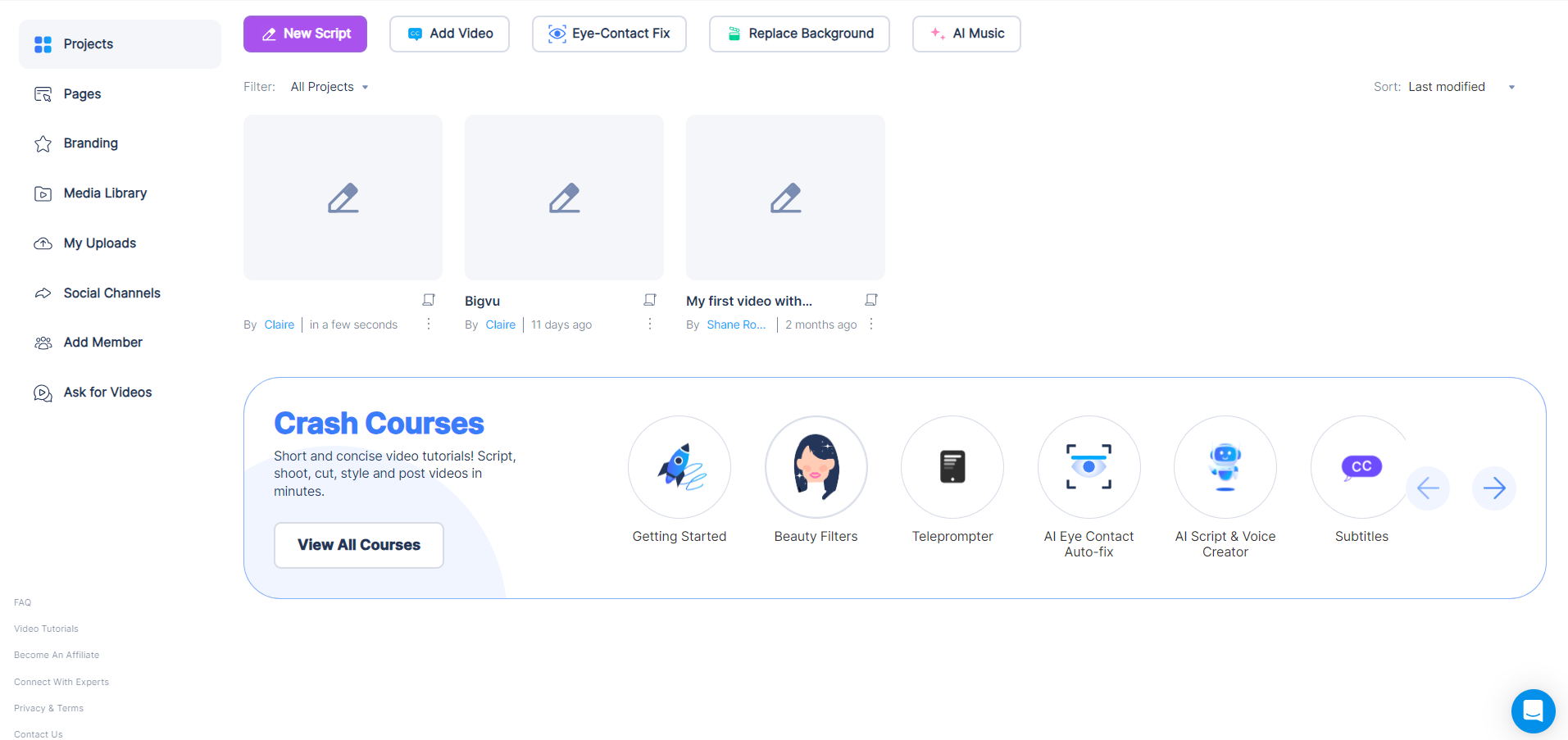
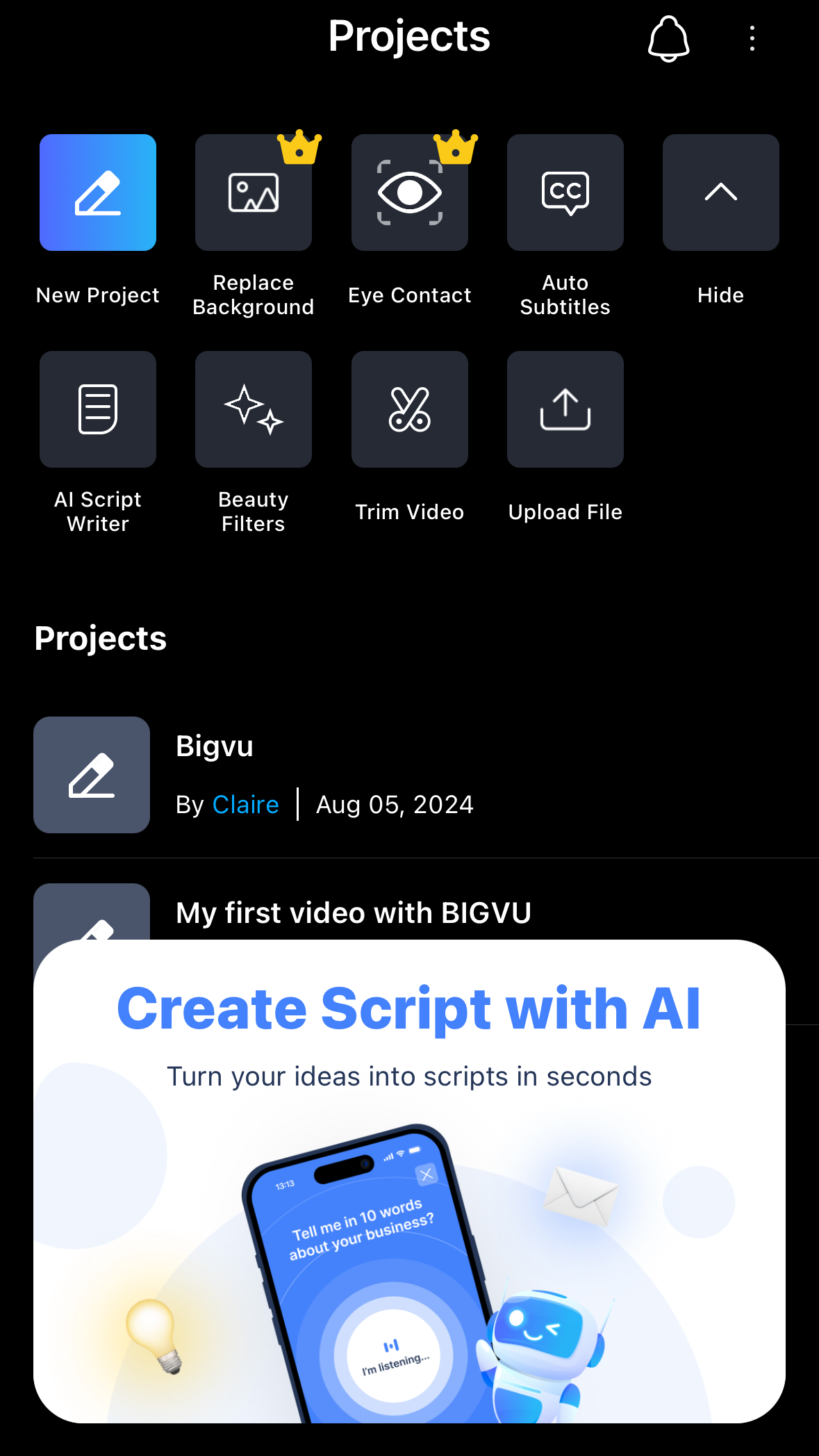
Alternatively, you can download the BIGVU mobile app. The app can be used for every step in the video making process, and is especially useful for recording videos with the teleprompter feature.
AI Script Writing
To start writing the script for a new project:
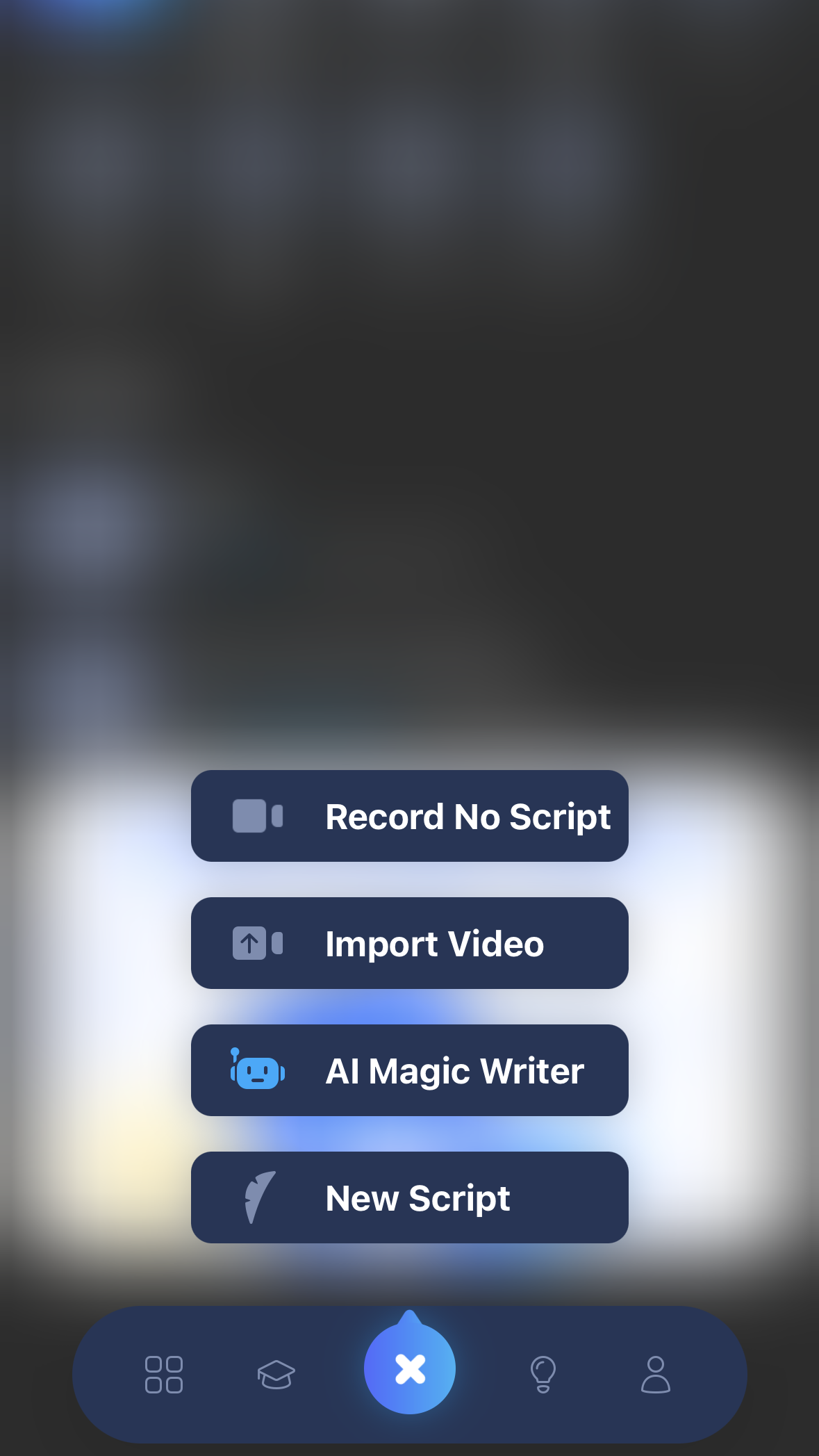
- On mobile select either “New Project” or the
icon at the bottom
- On web, select “New Script”
If you already have a script, simply click “New Script,” enter a project title, write your script below, then either save for later, or click the recording button to begin filming.
If you want to fully take advantage of BIGVU’s AI capabilities and generate a script within the mobile app, select “AI Magic Writer.” You can pick from the given templates and then you will be prompted to provide 10 words for the Magic Writer, which will in turn provide you with 5 possible scripts to choose from. Other script templates may have slightly different prompts, so follow the instructions in the app.
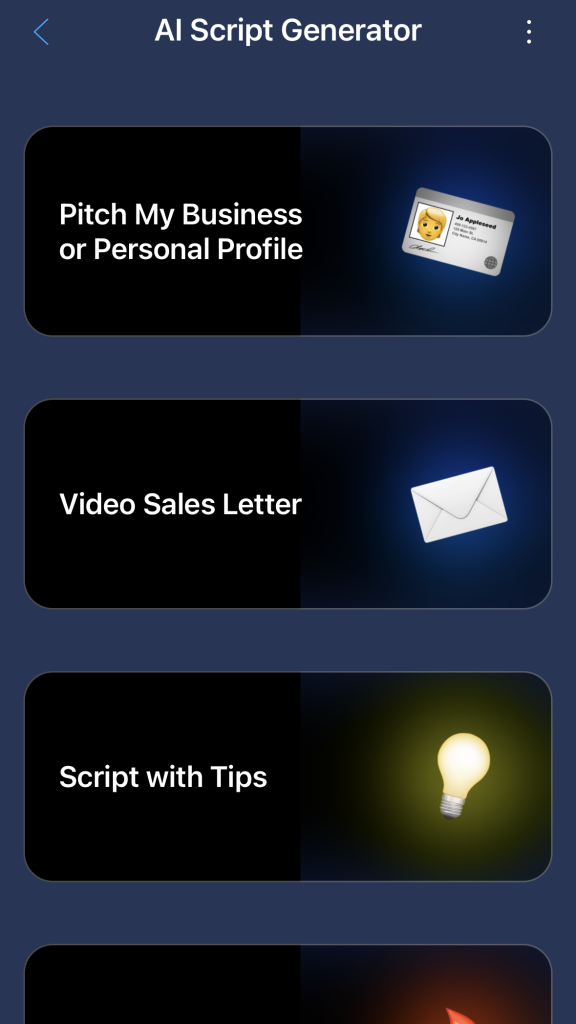
Select a script template
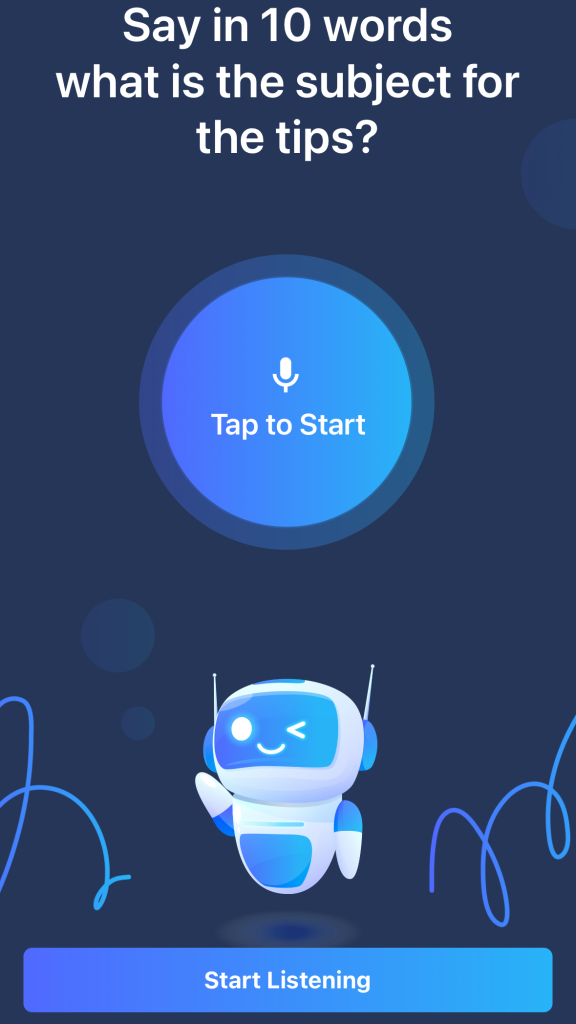
Record keywords to generate script
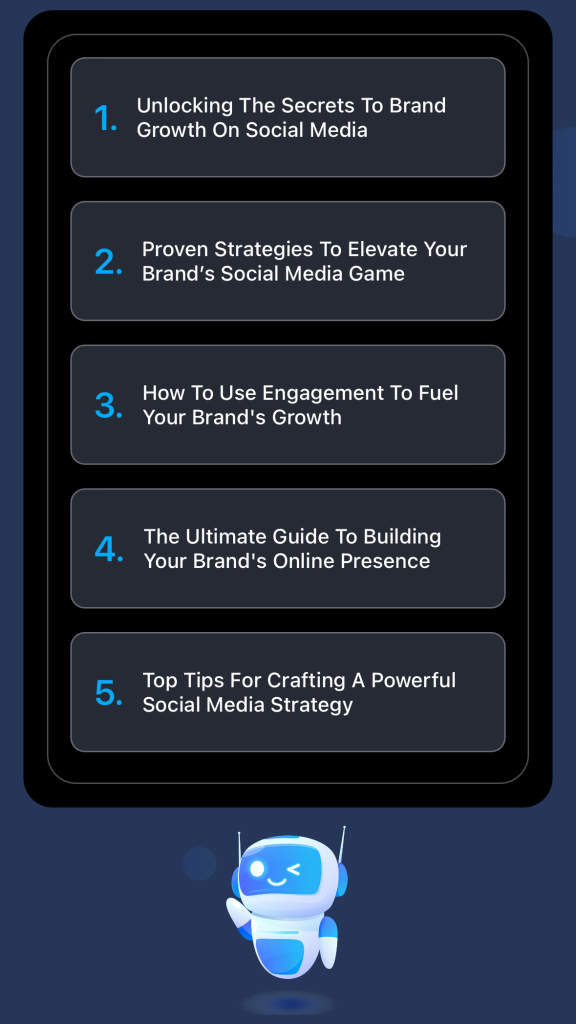
Select one of the generated video topics
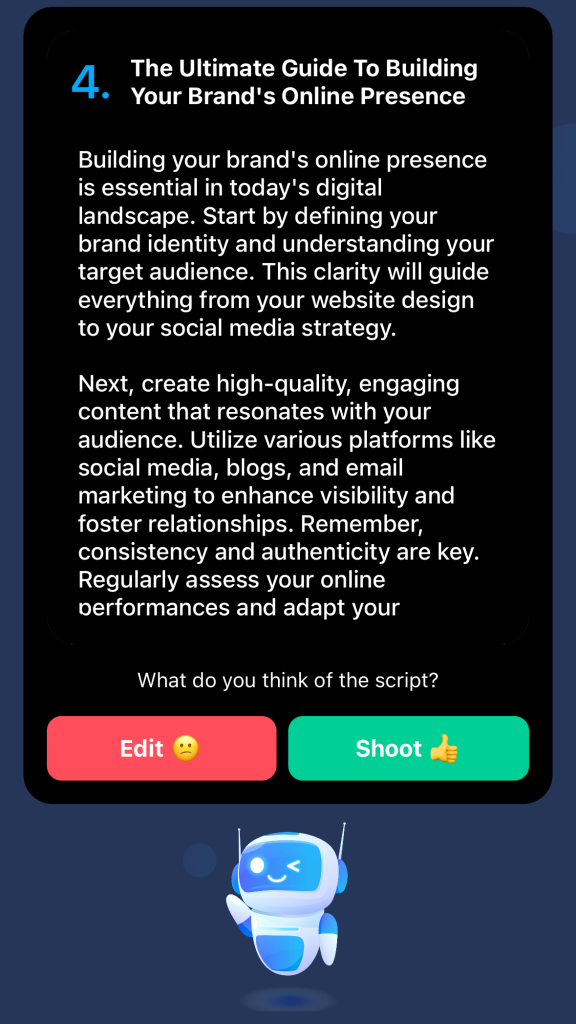
Preview your AI-generated script and edit/record!
With the BIGVU website, you have even more options to create your script. You can use the whiteboard feature to help plan videos or organize different AI generated script ideas, all stored in one place.
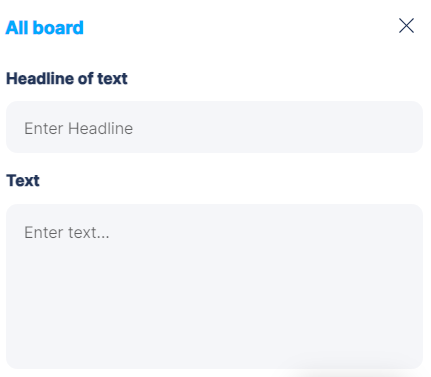
Similar to the app, you can also use AI to write your script. Select “AI Writer,” which will prompt you to select various options for your script, such as the length, tone, and topic.
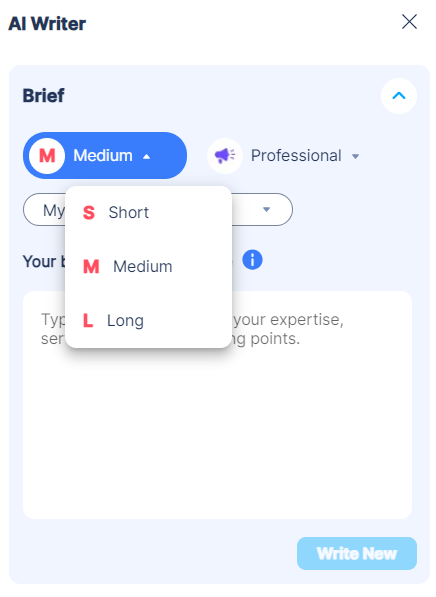
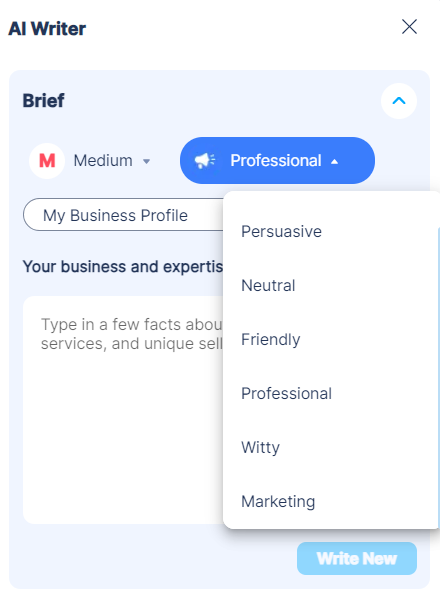
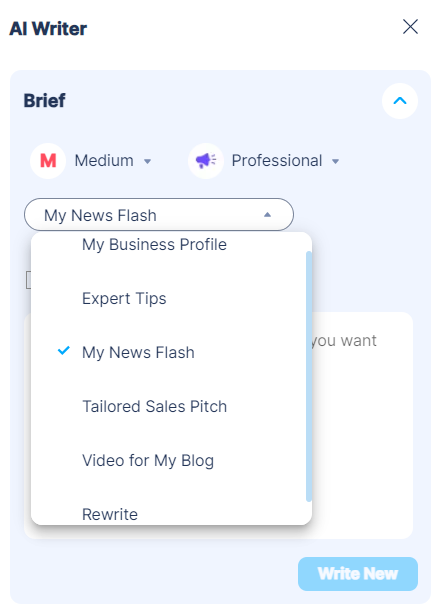
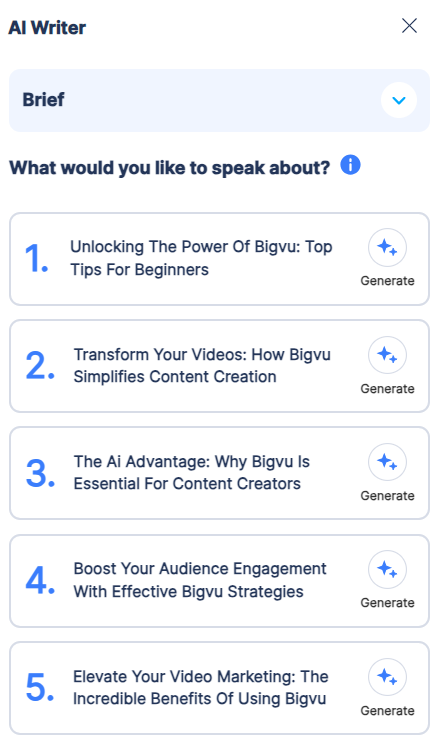
Once you have made your selections, you can type in the box whatever BIGVU asks related to your topic, typically involving you providing certain keywords to what you want your video to be about. Then, the AI will generate several video scripts, and you can choose to add them to your script or add them to your whiteboard.
Recording Your Video
Once your script is complete, you can begin recording! One of BIGVU’s most unique features is its teleprompter, which can be edited to your preference. You can adjust the size, location, and speed of the teleprompter from the app, to help make it easier to read your script while recording.
- Resize: Adjust the text window of the teleprompter. A good tip is that if you are recording close to the camera, making the text window narrower will help you maintain eye contact with the camera. Otherwise, if you are further away, you can make the text window larger to help make it easier to read.
- Font Size: Adjust to increase or decrease the size of the teleprompter text.
- Speed: Adjust to change how fast the teleprompter scrolls, given in words per minute.
- Start Point: Select this option to choose where the scrolling of your script begins. This is useful if you want to rerecord a certain part of your video, because you can scroll to that part of your script and have the teleprompter start from there, making editing later that much easier.
Other features you can adjust from the recording section include adding filters, blurring the background, and retouching. Do this by selecting “Effects” at the bottom menu. Each feature is conveniently located at the bottom of the interface, so simply select what you wish to adjust, and choose a filter or option to your choosing. Many of the features will also include a slider, allowing you to choose the intensity of the effect you have selected.
Once you have made all of your selections, you can start to record your video!
Editing Your Video
Now that you have filmed your video, it’s time to start editing! This is the step where you will assemble your takes, add/edit subtitles, add branding, and more. To edit, you can either use the video recorded within the BIGVU app, or upload your own video from your mobile device.
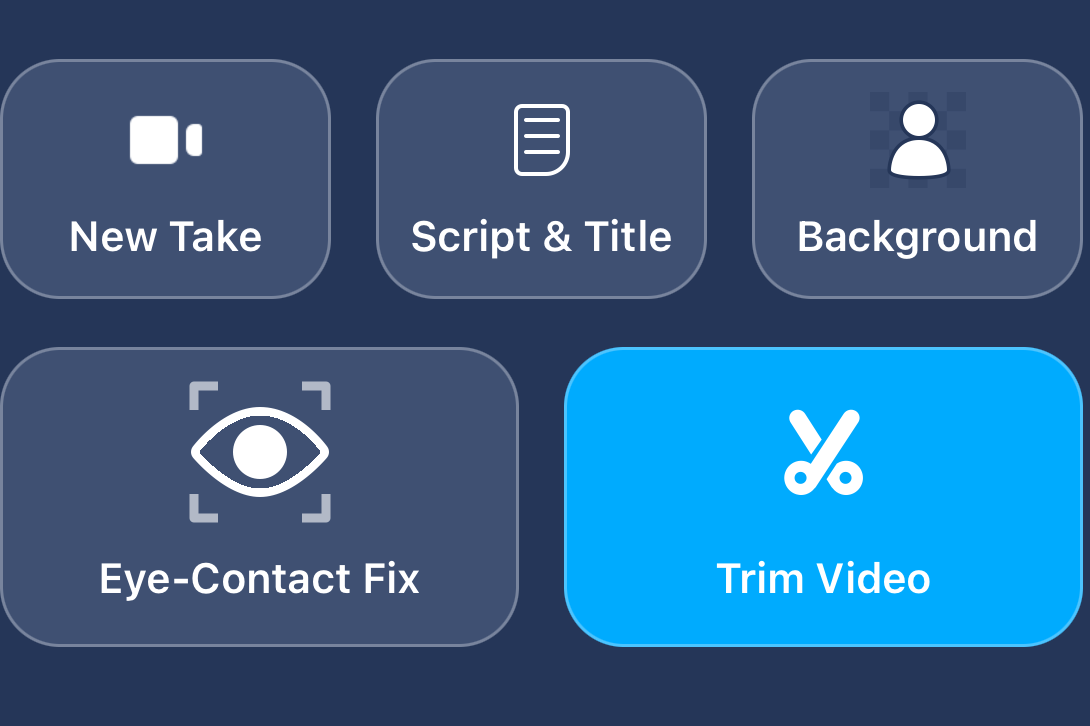
1. Cutting and assembling your takes is made highly convenient through BIGVU. Select the video/take you wish to cut first, and select “Trim Video.” Select the language recorded in, and BIGVU will create a transcript of the video. You can use this transcript to indicate the words at which you want to start and end your video. There is also a “fine tune” option, which allows you to manually adjust and trim your video. Then, save a copy of the trimmed video so it is ready to assemble!
2. You can automatically add subtitles to your video by selecting your video, and choosing a subtitle style from the “Magic Style” section at the bottom. Then, select “Style with captions” to add your subtitles. Select your language and choose if you would like to add features such as auto-highlight, that can follow the word currently being spoken.
- To style the subtitles, select the paintbrush icon at the bottom, which will allow you to select from various themes, colors, animations, and rotations.
- To edit the layout of the subtitles, go to the caption preview and select the “CC” next to the words. Select “Edit Scene Layout,” and choose your preferred layout option.
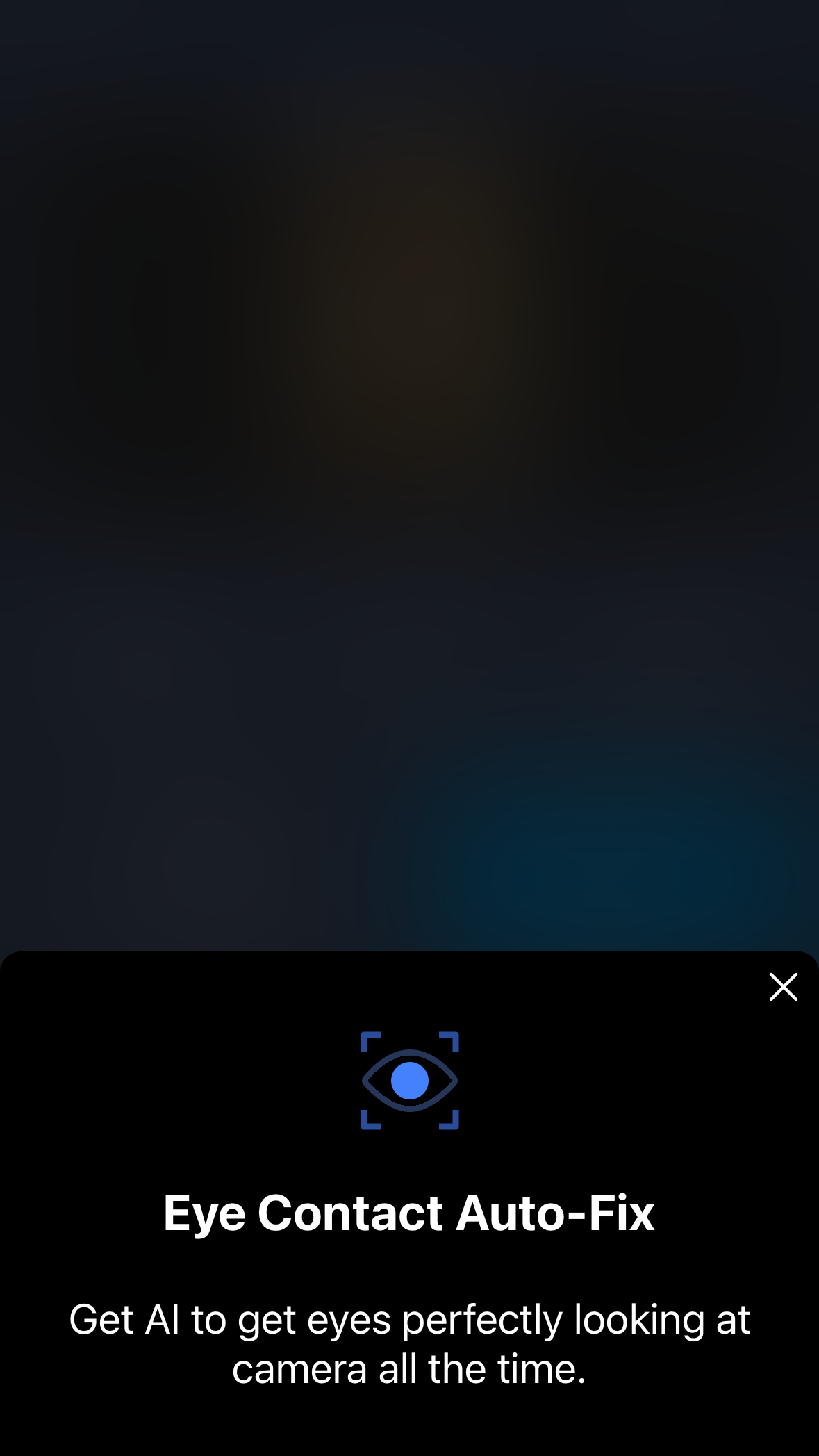
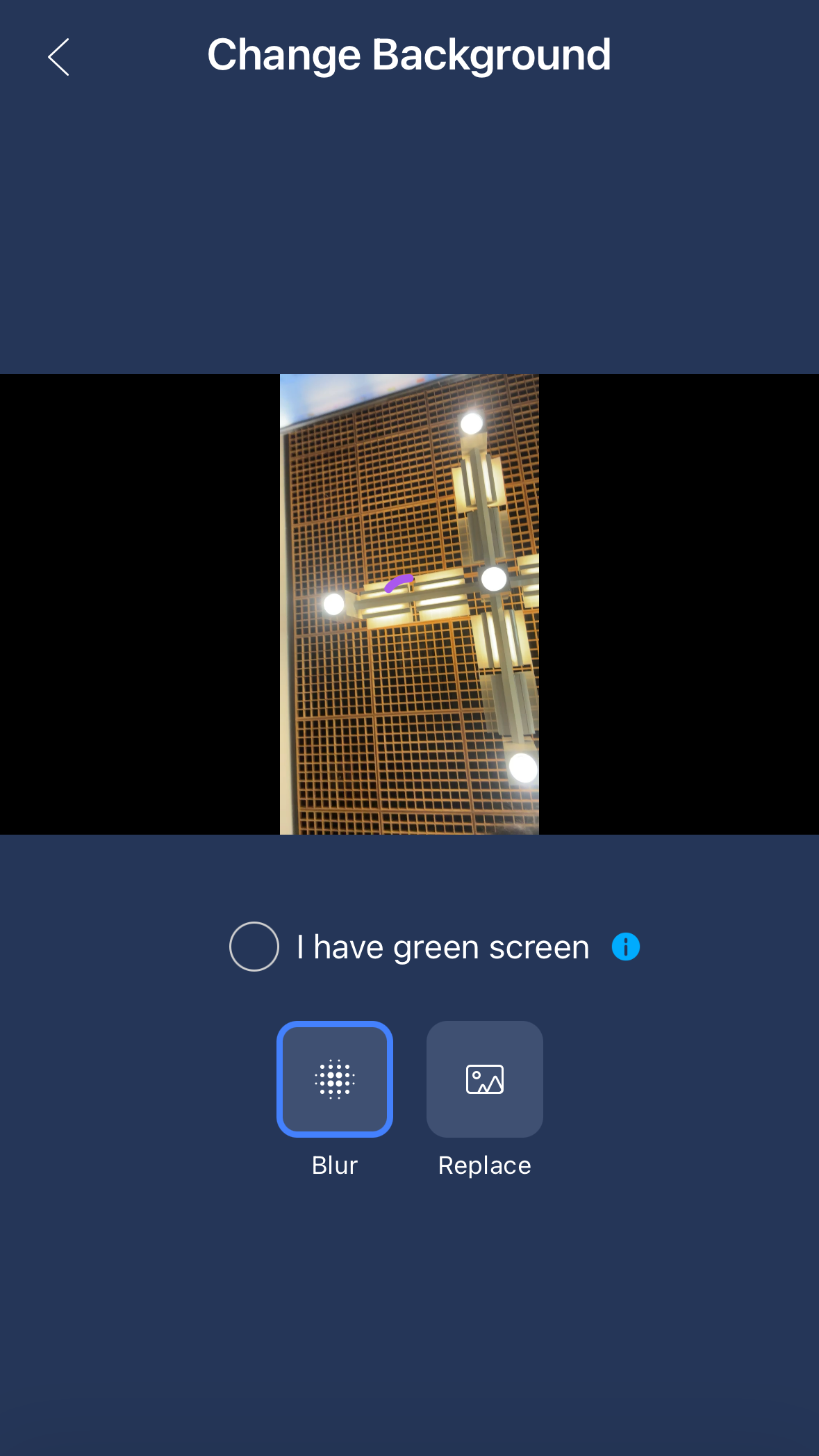
3. Other features you can add through editing include AI eye contact, replacing the background, adding music, and resizing the video.
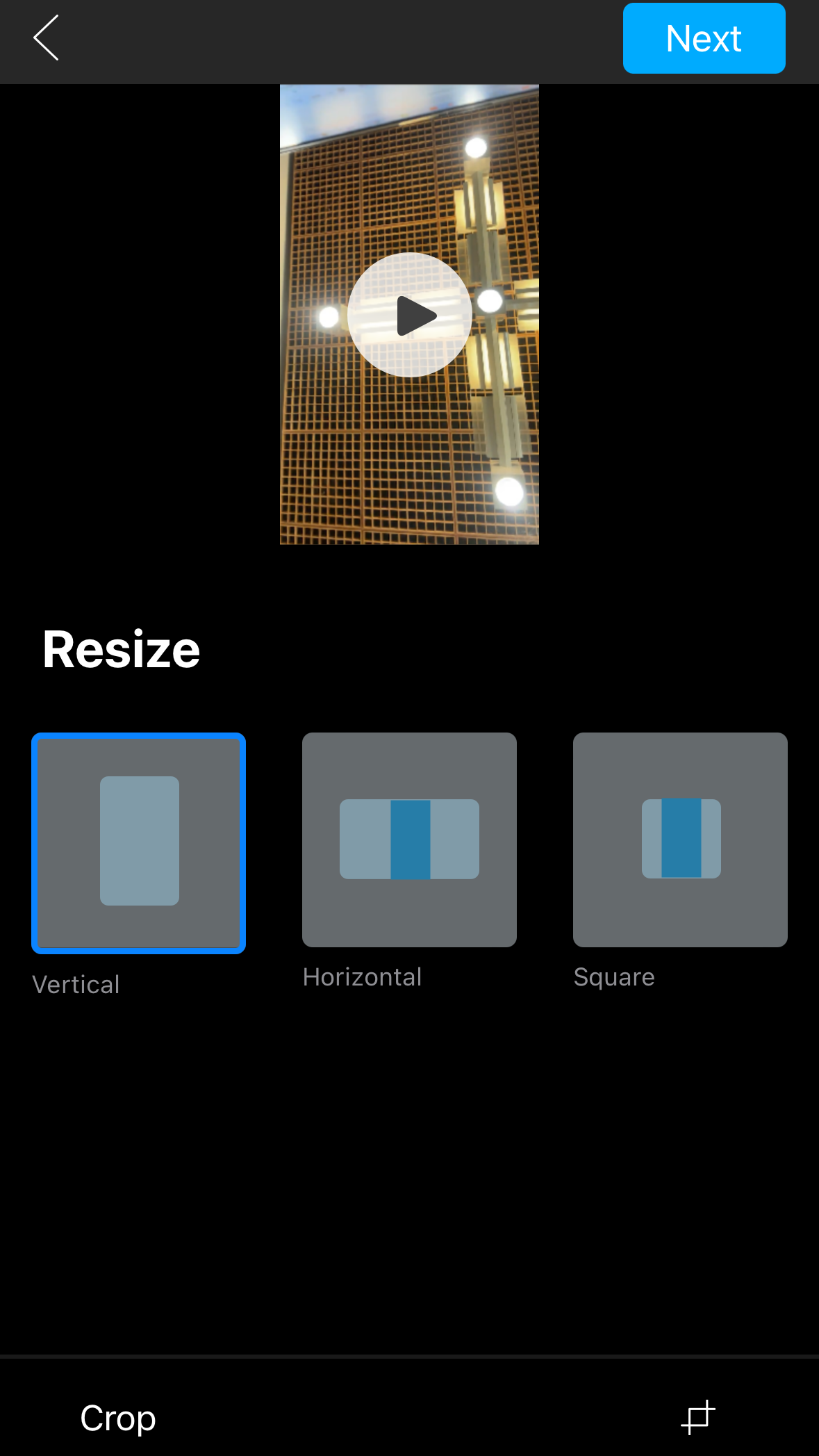
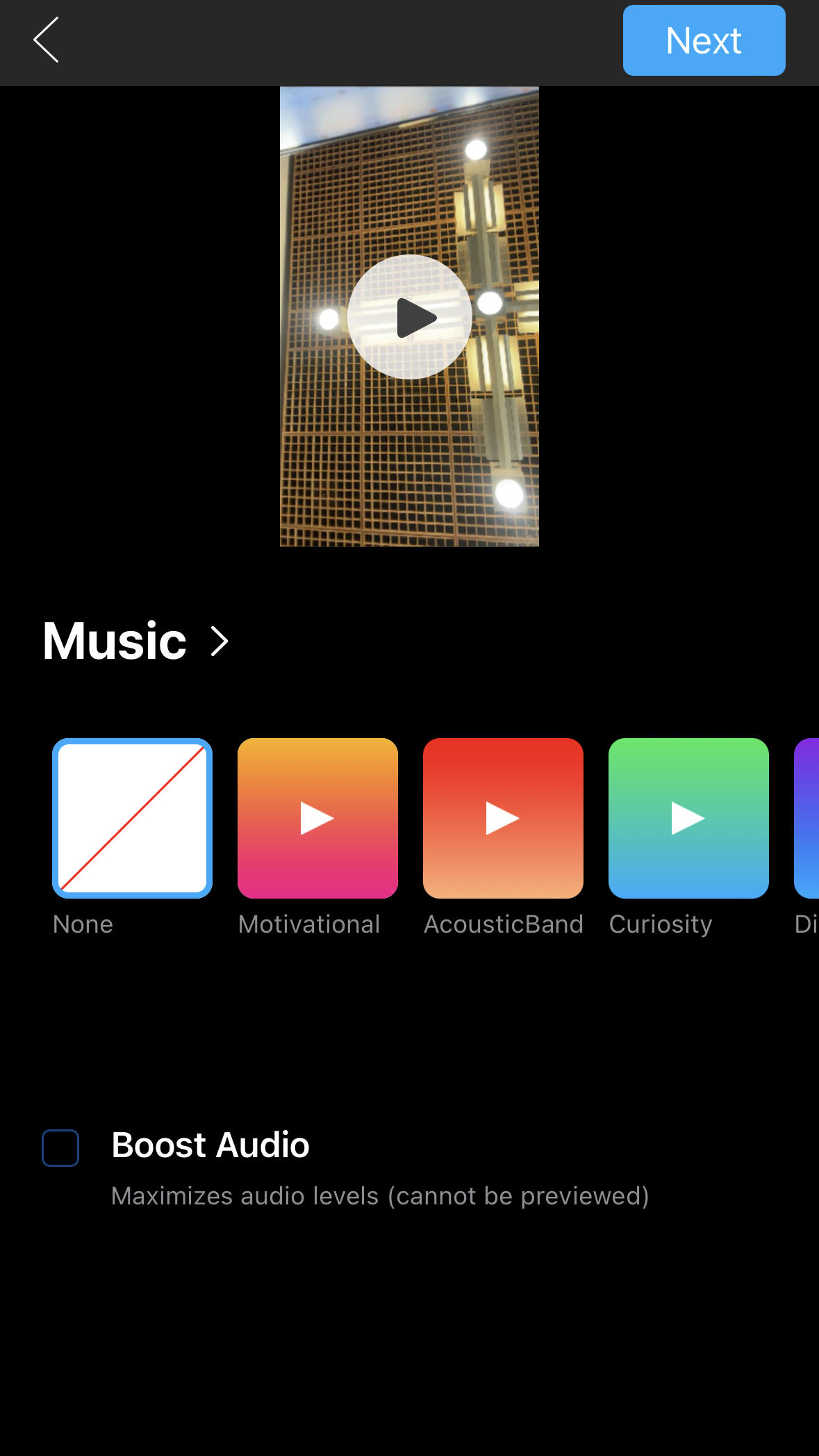
4. To add branding to your video, select the “Style Without Captions” editing option. On the bottom right, select the card icon to add an intro or outro to your video. This could be a virtual business card or a video. This allows you to display information including contact information and social media links. You can also add a watermark with your brand logo. Select the paintbrush icon, and you can then upload an image of your logo. Finally, adjust the size and location of your logo.
Sharing Your Video
BIGVU allows you to share videos directly to your social media, right from the app! Once your video is complete, click “Share” and “Post on Social Channels.”
You will then be given a list of your connected social media channels, so you can select the ones you would like to upload to. You can also select “Link more accounts” at the bottom, if you don’t have the right ones connected yet. Then, add a title and description to your video. You can also use BIGVU’s AI Magic Write to help generate a video description. At the top of the share screen, you can choose when to upload your video. It can be uploaded now or at a later date/time. Once this is done, hit share so others can view your finished video!
Join BIGVU today, and use our promo code MEHFIN63 to receive $20 off when you subscribe, or join here!
Recent Blog Posts
Elon Musk Doesn’t Run Six Companies. He Runs One Router.
On Wednesday morning, Andrej Karpathy — the man who taught a generation of engineers to build neural networks — told everyone to stop writing code. Manage the agents that write it, he said. The guy who wrote the playbook just rewrote it. We covered the implications in our Signal/Noise briefing: who builds the Cisco for agents, what happens when agents get wallets, why the Fastenal vending machine is the best metaphor for the AI economy. But the more we pulled on the thread, the more a different question emerged. Not about code. Not about models. About organizations. Specifically: what does a...
Mar 3, 2026Stop Boarding Up the Windows. The Tsunami Is Coming.
There's a popular narrative about AI and jobs right now. It goes something like this: AI is coming for your job. Companies are laying people off. The robots are winning. It's not wrong, exactly. But it's dangerously incomplete — like watching a hurricane through your living room window and thinking the problem is the wind. When a hurricane hits, the first thing you notice is the wind. Trees bending, debris flying, power lines snapping. It's dramatic and visible and it's what every camera crew points at. Then comes the rain — relentless, overwhelming, the kind that makes you question every...
Feb 24, 2026The command line didn’t die. It was waiting.
There's a moment every programmer remembers. Not when they learned to code — that's a different memory, usually involving a textbook and a lot of frustration. I mean the moment when the terminal stopped feeling like a place you visited and started feeling like a place you lived. For me, that moment happened twice. Once in my early twenties, bent over a keyboard writing Bash scripts, watching the Unix command line respond to me like a conversation. And then again, exactly one year ago, when I typed my first prompt into Claude Code and felt that same electricity — something on...